能做什么,需要什么
参考图生成用 1~4 张图片和一段指令生成一张新图。指令中按添加顺序用 <image-1>、<image-2> … 指代图片。
需要付费方案(Starter 及以上)。每张 10 积分,每张参考图再加 10 积分:1 张参考 20 积分,2 张 30,4 张 50。被拦截或生成失败时积分会退回。
本文中我们制作了一个虚构的精华液瓶(品牌名 AURA 也是虚构的)和一个虚构的客厅,用作参考图。如果是你自己的商品,请用你自己的照片。
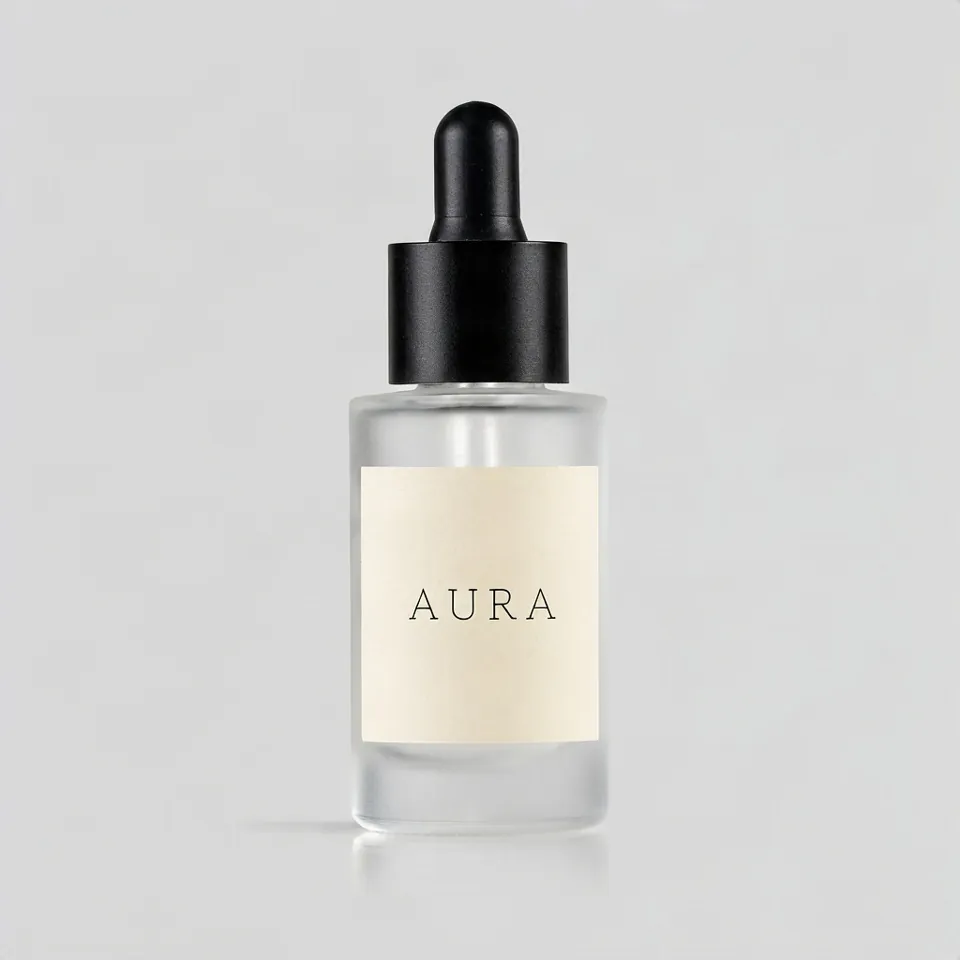
例 1:把同一个瓶子放进两个场景
- 打开参考图生成,添加瓶子照片,它会显示为
<image-1>。 - 粘贴下面的指令。把不能变的东西(这里是瓶形、瓶盖和标签)写出来。
- 选择比例(第一张方形,第二张竖版),点「生成」。
我们用英文写指令进行了测试,下面是原文。
Put the bottle from <image-1> on a white marble bathroom counter next to a folded linen towel, soft morning window light from the left. Keep the bottle shape, the black dropper cap and the AURA label exactly as in <image-1>.Put the bottle from <image-1> on a dark wet rock by the sea at sunset, warm backlight, shallow depth of field. Keep the bottle shape, the black dropper cap and the AURA label exactly as in <image-1>.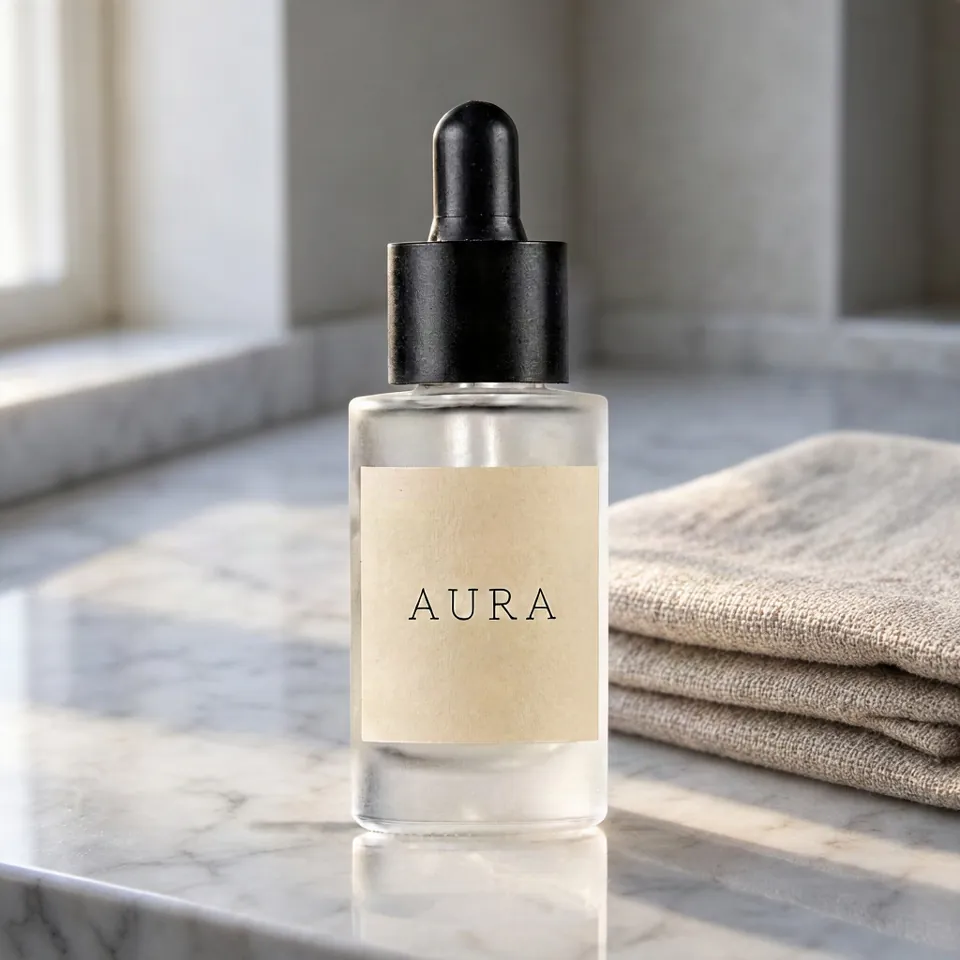
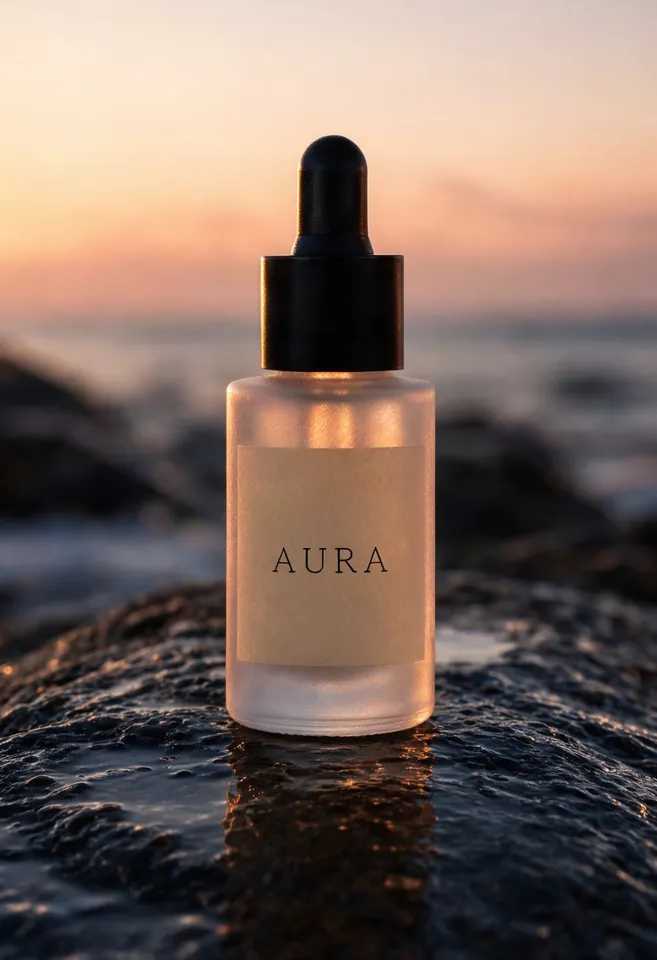
两张图中,瓶形、黑色滴管瓶盖和 AURA 字样都保留了下来。每张大约 20~30 秒。每次都从不同的随机数开始,所以同样的指令结果也会略有不同。
没做好 1:强光改变了标签颜色
看夕阳那张的标签:纸从浅奶油色变成了暖米色,因为夕阳的光也照到了标签上。用在商品页上,看起来像另一个标签。
有效的做法:再加一句写明颜色的话。
Put the bottle from <image-1> on a dark wet rock by the sea at sunset, warm backlight, shallow depth of field. Keep the bottle shape, the black dropper cap and the AURA label exactly as in <image-1>. The label paper stays the same pale cream as in <image-1>, not tinted orange by the sunset.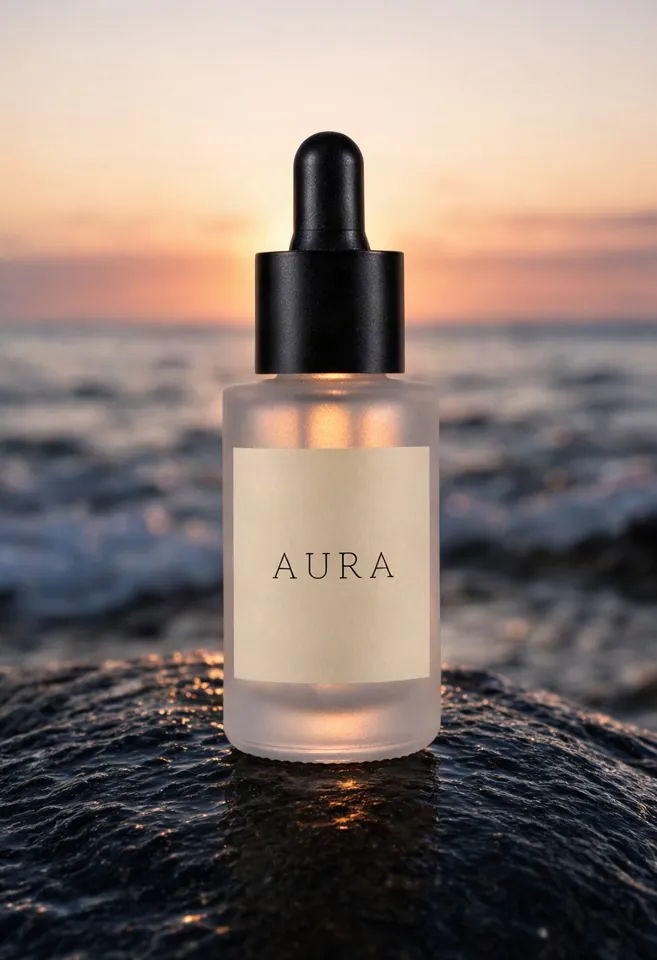
标签保持了奶油色。副作用是岩石和海面也变了,因为指令变了,画面也会变。想保留喜欢的场景的话,颜色这句最好一开始就写进去,而不是事后再补。
例 2 和没做好 2:只换沙发,墙也变了
这次以房间照片为参考,只换沙发的面料。
Change only the sofa upholstery in <image-1> to deep green velvet, including the cushions. Keep the room, the coffee table, the vase, the floor, the light and the camera angle exactly as in <image-1>.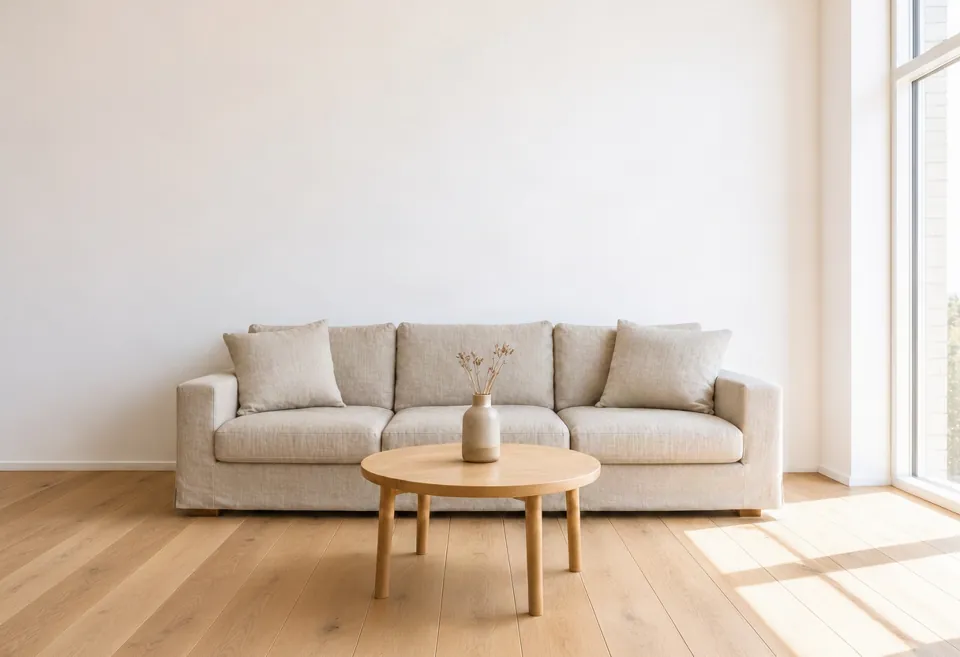
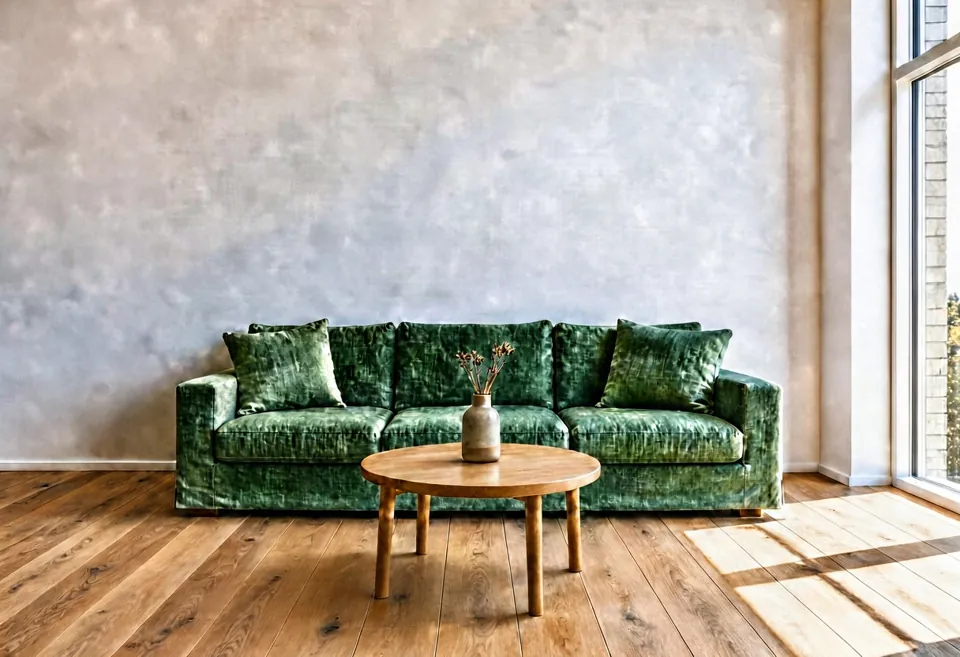
沙发变成了绿色丝绒。可是白色的素墙变成了斑驳的灰色灰泥质感,整张图的对比度也变强了。而指令里写了「房间保持不变」。
我们加了一句关于墙的话,重新生成:
Change only the sofa upholstery in <image-1> to deep green velvet, including the cushions. Keep the room, the coffee table, the vase, the floor, the light and the camera angle exactly as in <image-1>. The wall stays smooth plain white paint with no texture.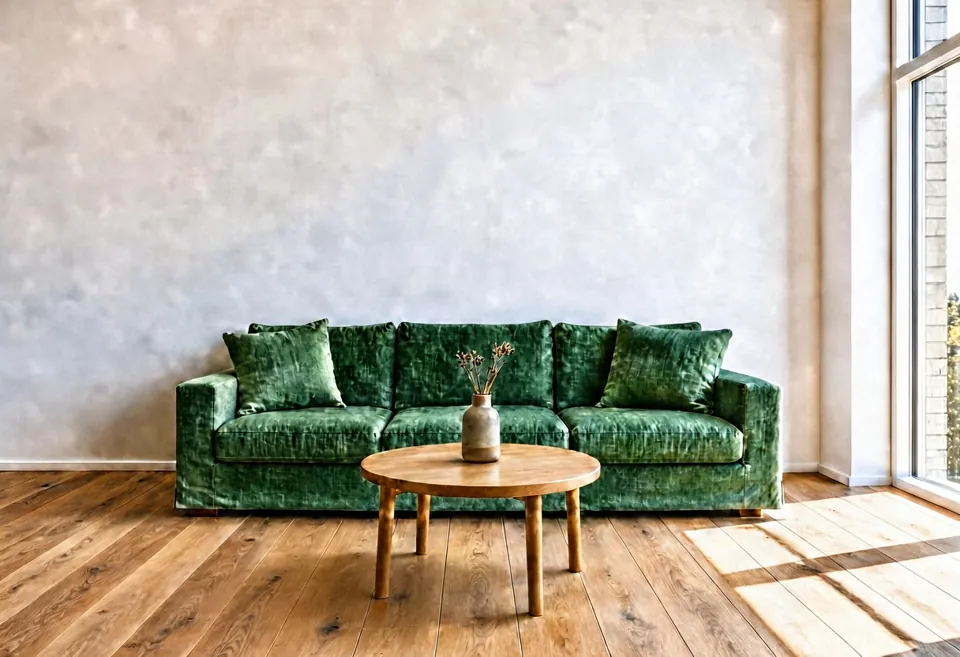
没有修好。在我们的测试中,这个工具会重画整张图,所以改房间里的一样东西,其他部分也可能跟着变。把商品放进新场景(例 1)比只修改照片的一部分要合适得多。如果只想改一个区域,用涂抹来指定区域的工具,比如查找替换,是另一个办法(这张图我们没有测试)。
例 3 和没做好 3:两张图合成后没有阴影
用两张参考图,可以把商品放进指定的房间。先加瓶子,再加房间,瓶子就是 <image-1>,房间是 <image-2>。
Place the bottle from <image-1> on the round wooden coffee table in <image-2>, next to the vase, at a natural size for a 30 ml bottle. Keep the room from <image-2> and the bottle and AURA label from <image-1> unchanged.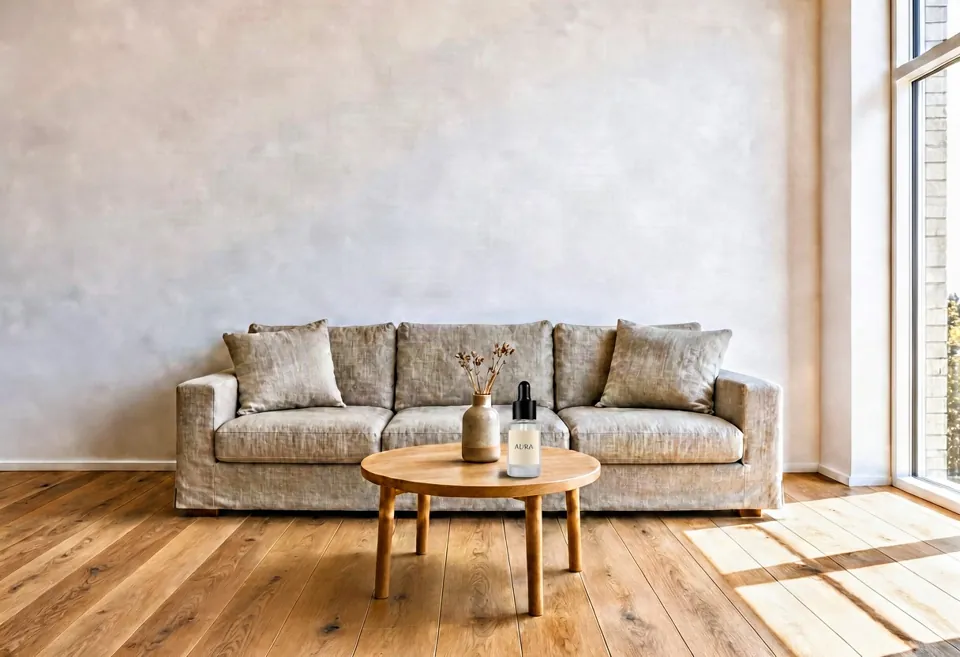
瓶子以合理的大小放在了茶几上,标签也能看清。问题有两个:瓶子下面几乎没有阴影,看起来像贴上去的;墙和例 2 一样变了。
总结:设置和指令写法
- 适合:保留商品外形和标签,放进新场景。
- 不太适合:只改房间照片的一部分,其他部分也可能变。
- 要保留的东西一定写出来:外形、瓶盖、标签、颜色。用
<image-1>说明是哪张图。 - 容易被光改变的颜色(白色、奶油色、品牌色)在第一次的指令里就写明。
- 比例:方形 1024×1024,竖版 832×1216,横版 1216×832。
- 积分:1 张参考 20,2 张 30,4 张 50。Starter 方案及以上。
可以用你自己的商品照片,在参考图生成里试试。